A complete guide to managing pedal memory, loading custom presets with Zoom Guitar Lab, and fine-tuning your acoustic or electric string tone.
If you have a custom preset pack for the Zoom A1 Four or A1X Four, this guide shows you how to install it. It works for acoustic violin, electric violin, viola, cello and guitar, and covers everything from warm acoustic resonance to modern ambient textures.
If you are wondering how to load your .zptc or .zm1x patch files, or how to free up memory on your device, follow the steps below.
Universal compatibility: Zoom A1 Four and A1X Four
The installation method and setup process are identical for the Zoom A1 Four and the Zoom A1X Four (the one with expression pedal).
Looking for presets made for your pedal? See my Zoom A1X Four presets pack for violin or my Zoom A1 Four presets pack for violin, with custom patches for violin, viola and cello. Need to set a delay in time with your song? Use the delay time calculator.
Step-by-step video tutorial
Prefer to follow along visually? Watch the full video walkthrough:
Tip for English speakers: the original audio is in Spanish, but YouTube provides translated audio and subtitles. Click the settings gear on the video player to switch to English.
Prerequisites and hardware requirements
Before installing your presets, make sure you have:
- Zoom A1 Four or A1X Four pedal
- A computer (Windows or macOS)
- External power supply (power bank or AC adapter)
- Data-capable micro-USB cable (it must transfer data, not only charge)
- Zoom Guitar Lab software, a free download from Zoom’s website
Step-by-step installation guide
Step 1: Download and install Zoom Guitar Lab
You cannot install .zptc patch files through the pedal’s own menu. Download and install the free official software on your computer.
Step 2: Connect your hardware
- Power on your pedal with an external power source first.
- Connect the USB data cable from your pedal to your computer.
- Check that the pedal screen reads “PC Mode”.
Step 3: Clear room and check the required effects
If you get a “Memory Full” message or cannot add new patches, manage the memory from the software:
- Open Zoom Guitar Lab and confirm that the top icon is highlighted in blue.
- Go to the Effect Pool panel on the right side.
- Free up memory: right-click unused amp models or heavy factory effects you don’t need and select “Delete from device”. Keep the Used Memory gauge below 80–90%.
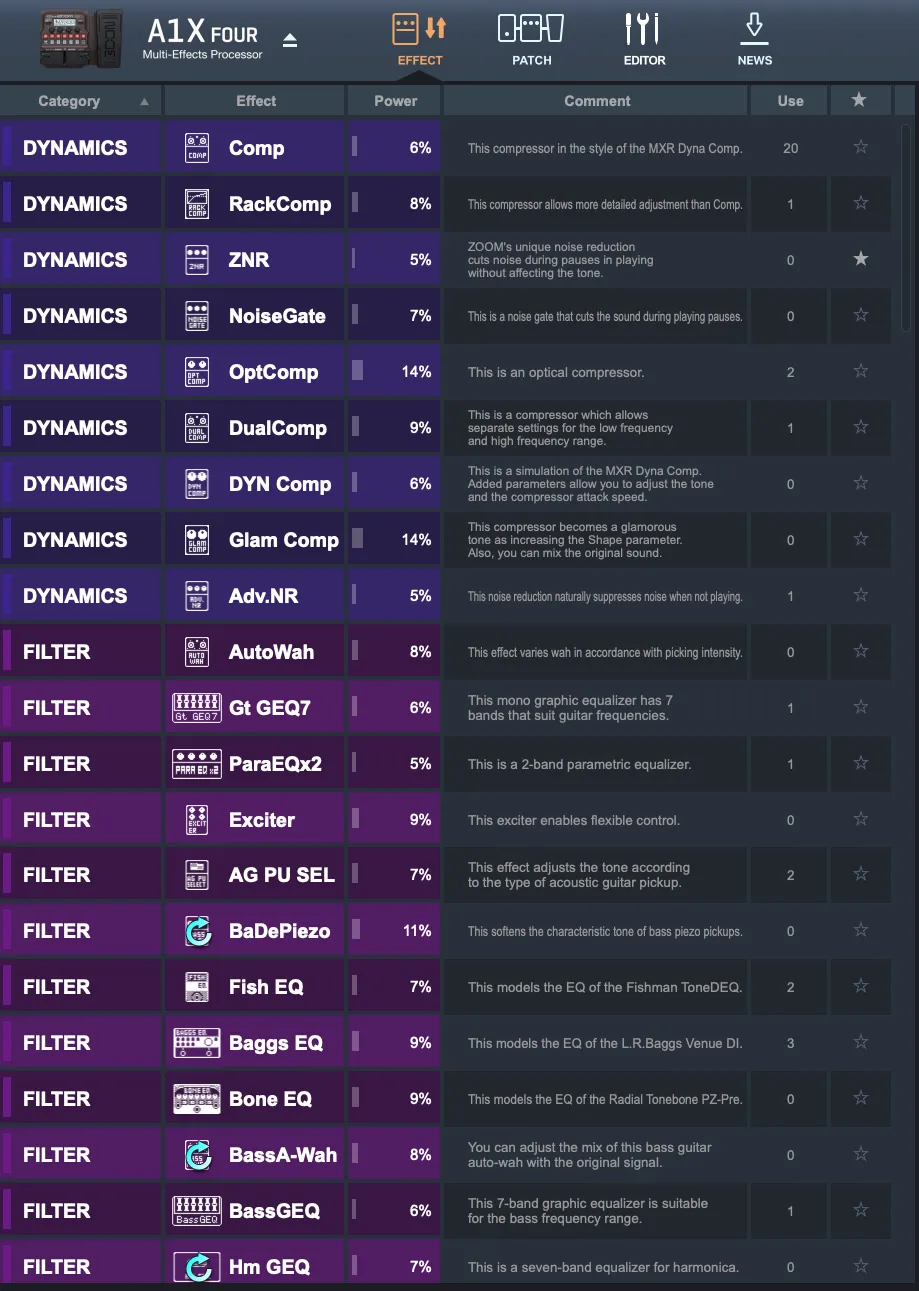
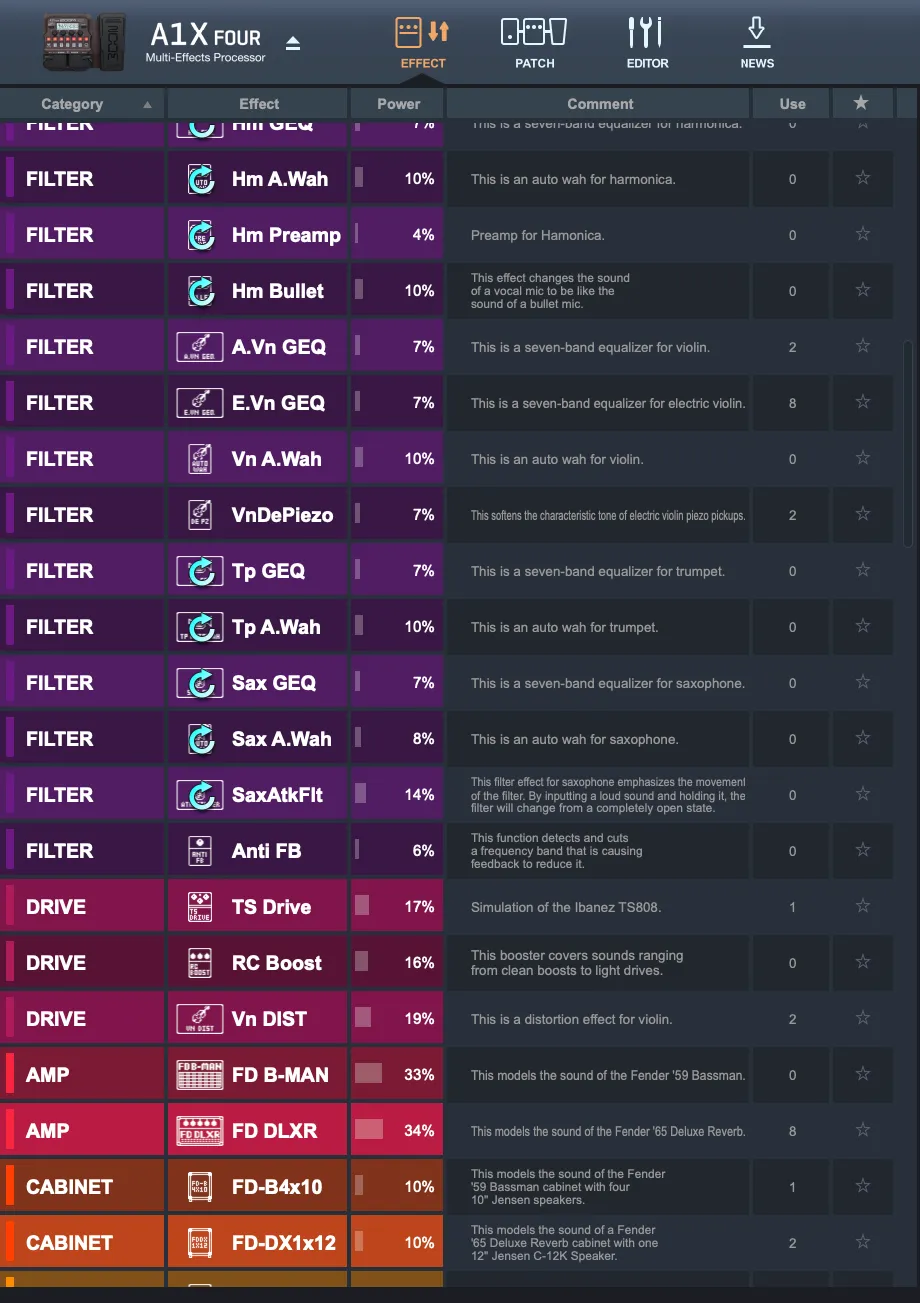
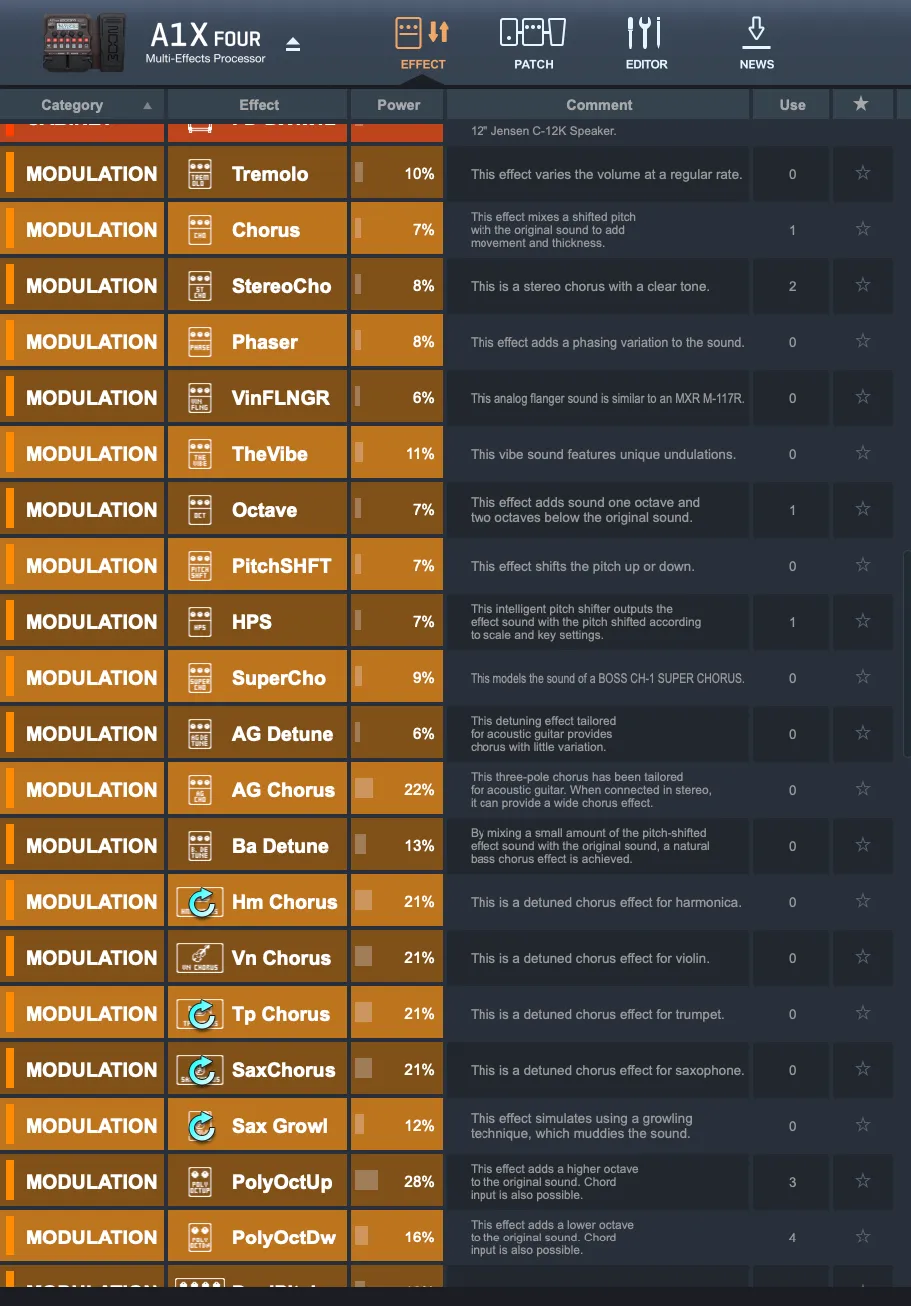
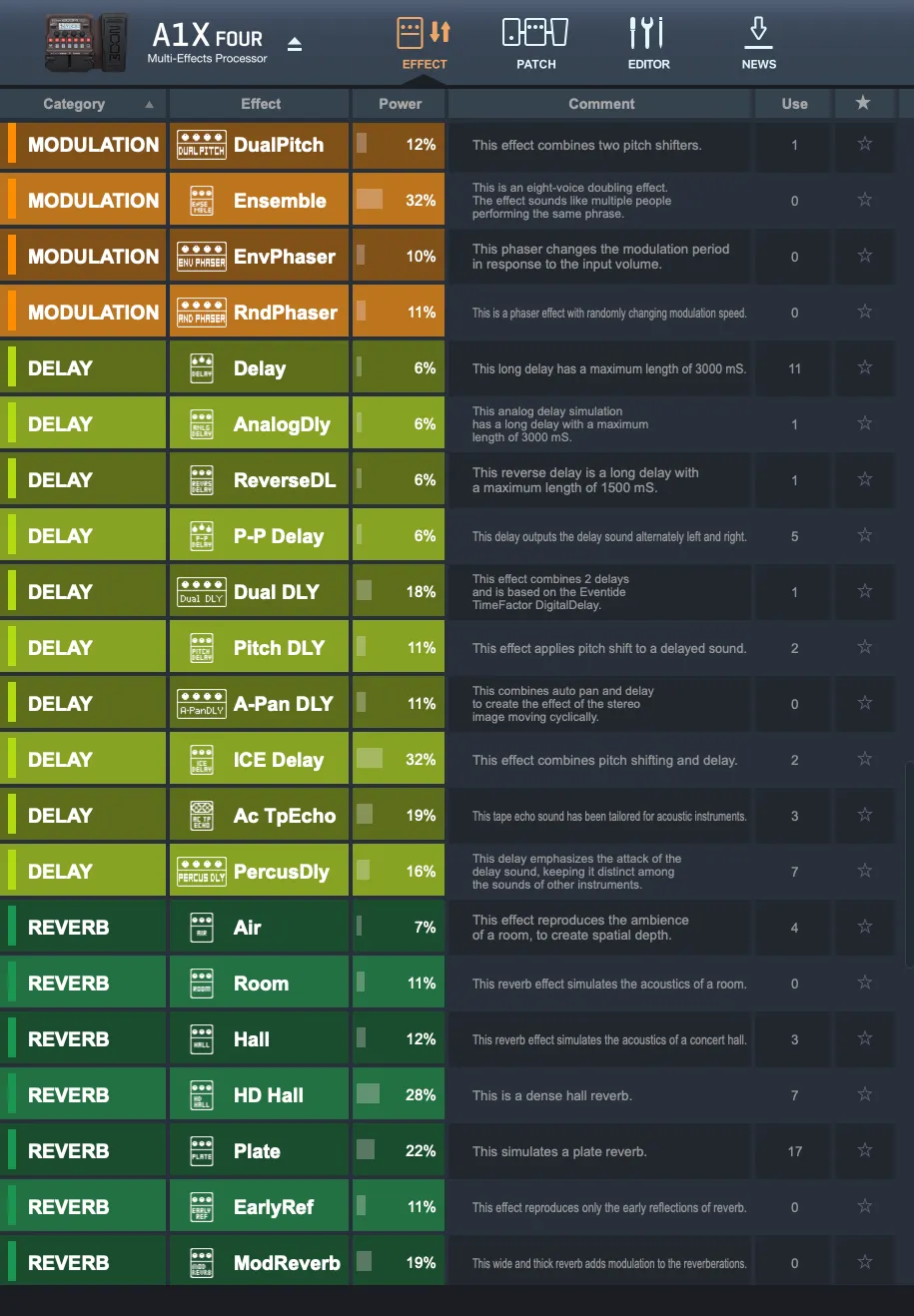
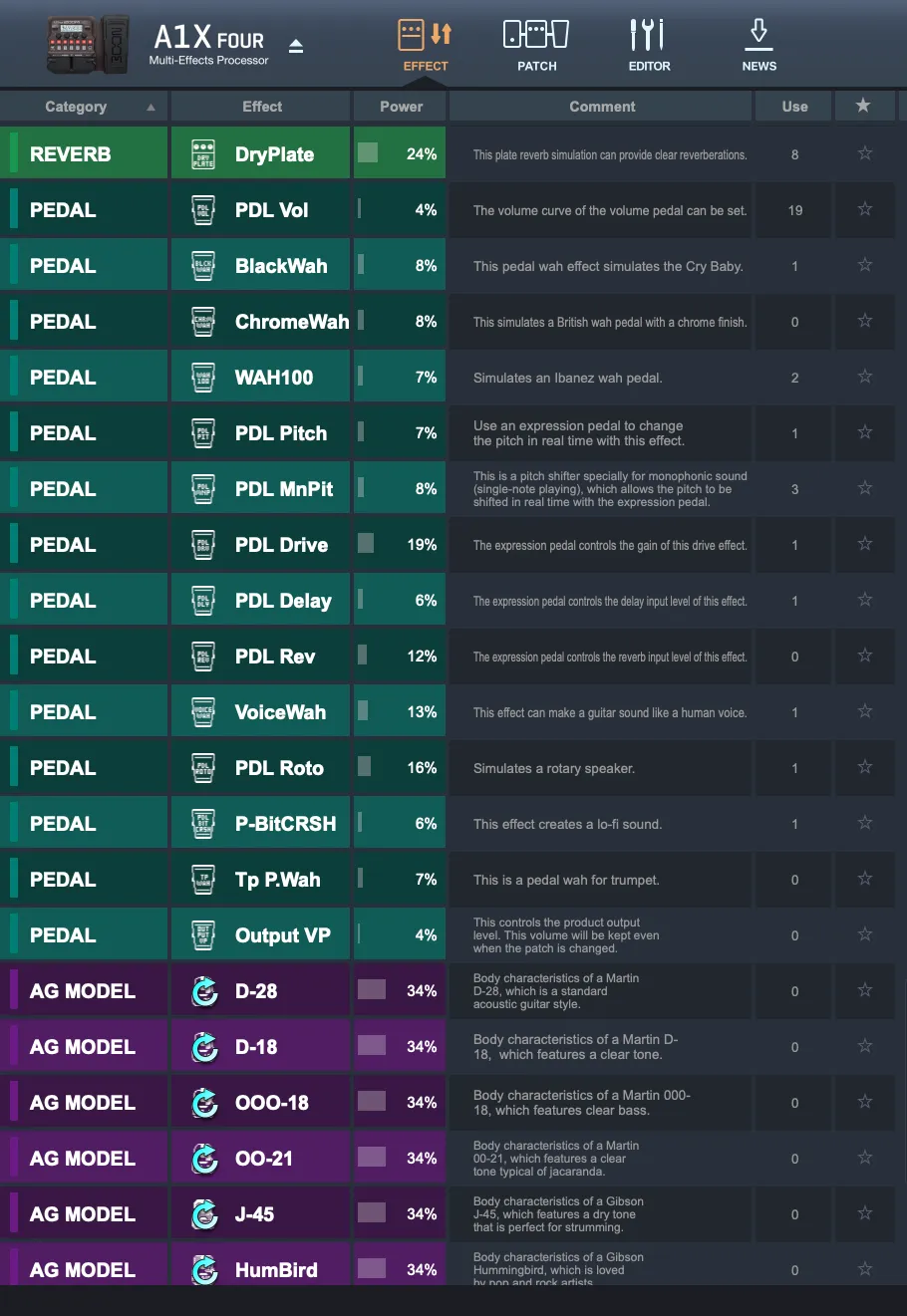
- Install missing effects: make sure all the yellow or unloaded effects required by your preset pack are installed in the pedal’s Effect Pool. Compare your pedal’s loaded effects with the reference screenshots below.
Step 4: Back up your patches
Click the Patch tab in Guitar Lab, select your existing patches (Ctrl + A or Cmd + A) and drag them into a folder on your computer as a backup.
Step 5: Import the presets
Select your unzipped preset files (.zptc format) and drag and drop them into the Patch list on the left panel of Guitar Lab.
Required effects reference list
Make sure these effects are loaded on your Zoom hardware through Guitar Lab so that all the custom presets sound as intended:
Troubleshooting quick guide
| Problem | Likely cause | Solution |
|---|---|---|
| Pedal not detected / red icon | Faulty or charge-only USB cable | Use a dedicated USB data cable and check that the screen displays “PC Mode”. |
| “Memory Full” error | Pedal storage limit reached | Delete unused amp models and effects from the Effect Pool in Guitar Lab. |
| Preset has no sound | Missing required effect modules | Install all the required effects listed in the reference images of your download. |
Presets made for string players
If you have the little brother, then get 30 custom presets for the Zoom A1 Four, set your delay with the delay time calculator, or learn effects and live looping in online violin lessons.